
Today I’m happy to announce the release of a new free plugin for WordPress® called Table Block Enhancer 🚀
This WordPress® plugin designed to supercharge the default WordPress® Table block, which is lacking in features at the moment.
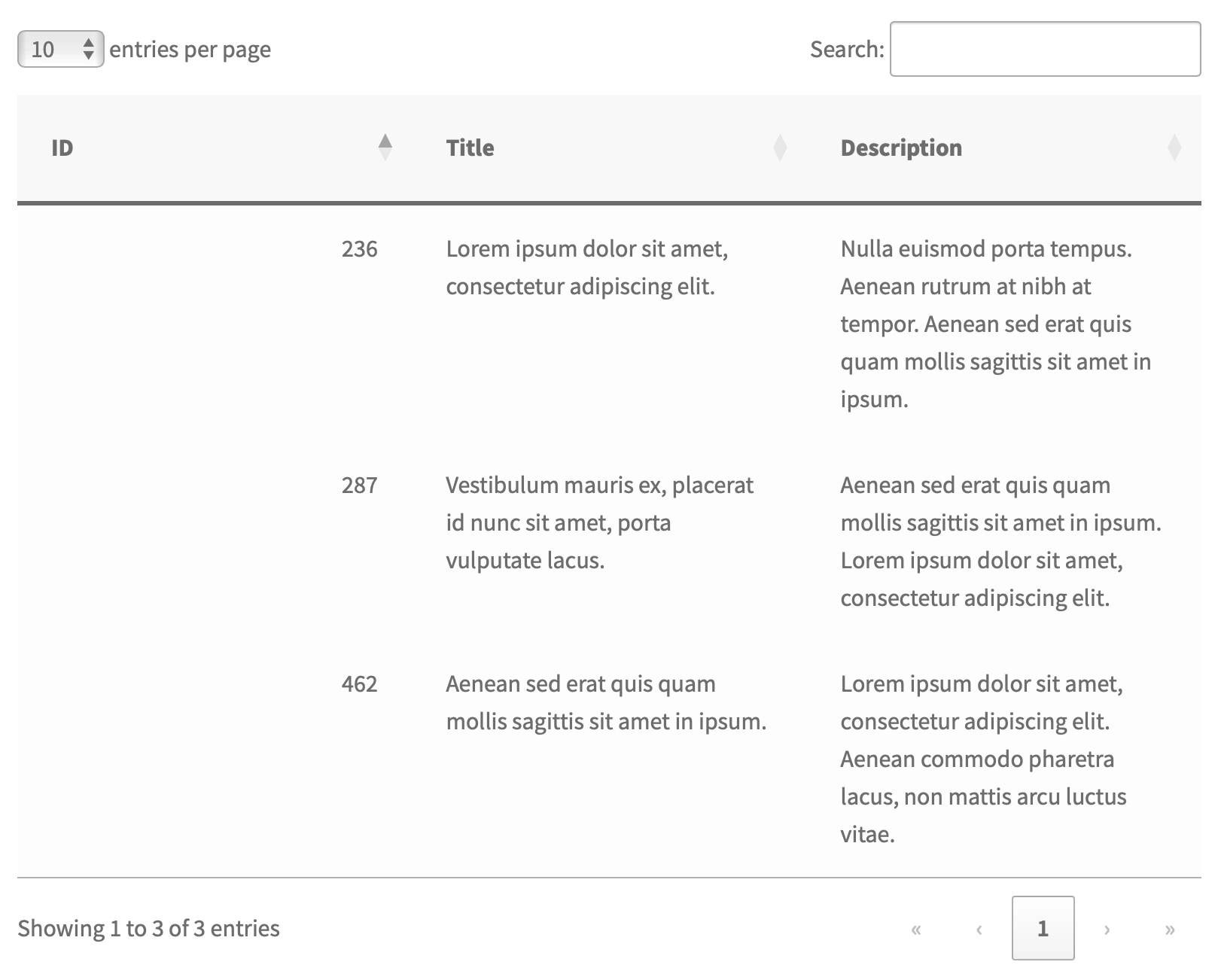
If you’ve ever wished for more functionality from your tables – like sorting, searching, and paging – this plugin is for you 🤘
Why I Built Table Block Enhancer
While WordPress® has made strides with the Gutenberg editor, the default Table block remains quite basic.
It lacks interactive features that modern website owners and users have come to expect when dealing with tabular data.
It’s also a request in the Gutenberg GitHub repo that’s been active since 2022 👀 (source)
As someone who frequently works with data presentation, I found this limitation and apparent lack of attention from WordPress frustrating.
So I wanted to create a simple solution that:
- Integrated seamlessly with the existing Table block.
- Required no coding knowledge for users.
- Provided essential features like sorting, searching, and paging.
That’s why I developed Table Block Enhancer – to fill this gap and give WordPress® users the power to create dynamic, interactive tables with ease.
Key Features
🔍 Searching
Allow your visitors to quickly find the data they need by adding a search box above your tables.
🔃 Sorting
Enable clickable column headers so users can sort table data in ascending or descending order.
📄 Paging
Improve usability for large tables by breaking them into manageable pages, displaying a set number of rows at a time.
🎛️ Per-Block Settings
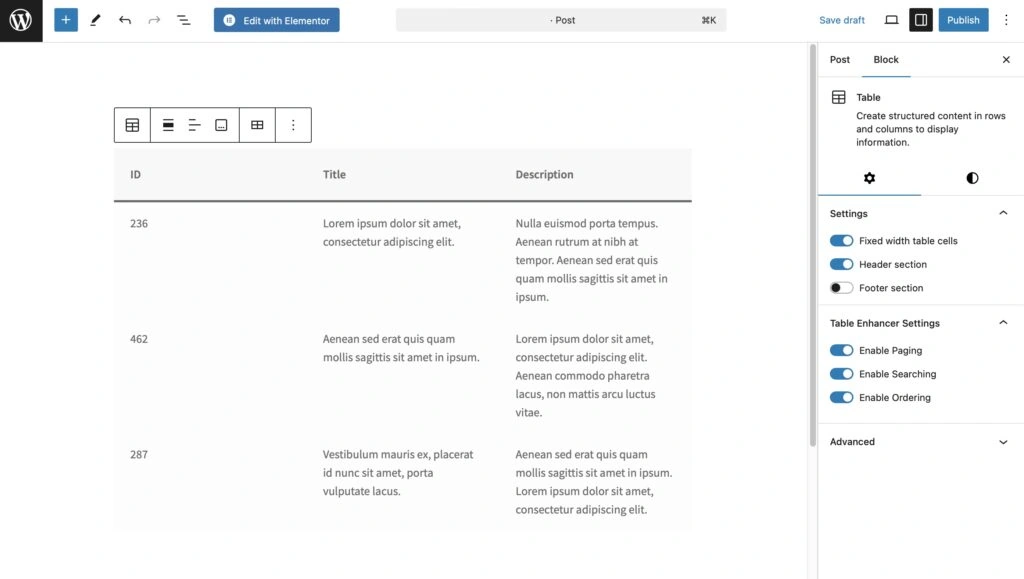
This plugin lets you control each table individually. You can enable or disable searching, sorting, and paging for every table block, giving you complete flexibility.
How to Use Table Block Enhancer
Getting started with Table Block Enhancer is straightforward. Here’s a step-by-step guide to help you enhance your tables.
1. Installation
- Download the Plugin:
- Get the plugin from the GitHub repository.
- Install and Activate:
- In your WordPress® dashboard, navigate to Plugins » Add New.
- Click Upload Plugin , select the downloaded ZIP file, and click Install Now.
- Once installed, click Activate Plugin.
2. Adding a Table
- Create a New Post or Page:
- Go to Posts » Add New or Pages » Add New.
- Add the Table Block:
- Click the Add Block button and select the Table block.
- Enter Your Data:
- Input your table’s content as you normally would.
3. Configuring Table Enhancer Settings
- Select the Table Block:
- Click on your table to select it.
- Open Block Settings:
- In the editor’s right sidebar, find the Table Enhancer Settings panel.
- Adjust Settings:
- You’ll see toggles for Enable Paging , Enable Searching , and Enable Ordering.
- Toggle the features on or off according to your needs.
4. Publishing and Viewing Your Enhanced Table
- Publish or Update:
- Once you’re satisfied with your table and settings, click Publish or Update.
- View Your Post/Page:
- Visit your site to see the enhanced table in action.
- Interact with the Table:
- Try searching, sorting, or navigating through pages to experience the new functionality.

I’m excited to share Table Block Enhancer with the WordPress® community as part of my December to Remember initiative.
I believe it fills a vital need for more dynamic and interactive tables within the Gutenberg editor.
Go ahead and download the plugin, give it a try, and let me know what you think 🙏💯